How Booking works
This page explains the staff portal and the Booking app: how you get started, sign in, book trips for your customers and look after your team. Boats, rafts, jeeps - it works the same for every kind of experience.
- The three parts
- Getting started
- Signing in
- The overview
- Booking a trip
- Find a trip for a group
- Your bookings
- Transfers and day reports
- Staff planning
- Newsletter
- The Booking app
- Roles
- Admin tasks
- For partners
- Guests and the website
- Safety
The three parts
Everything works on the same bookings, so what one person books is seen at once by everyone else.
Getting started
- Your activation link. Your administrator, or the team admin of your team, makes your account and gives you an activation link - by e-mail or on screen. The link works once and for a limited time (normally 24 hours).
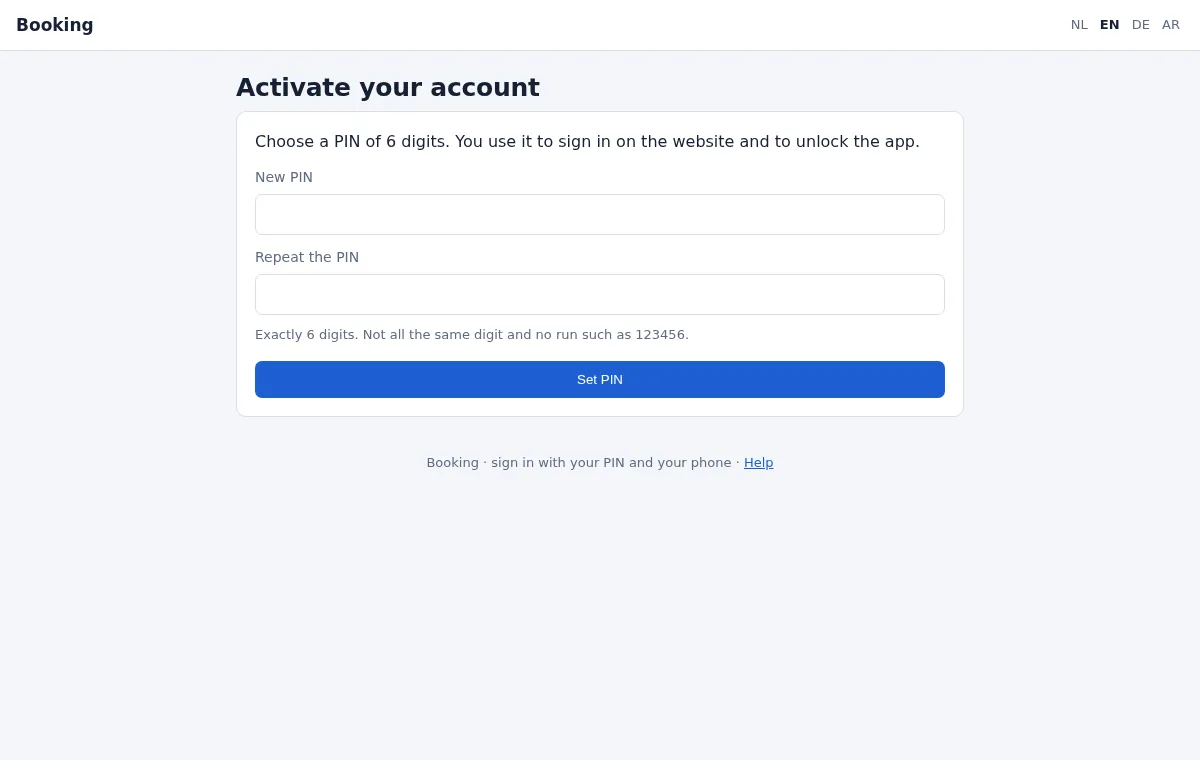
- Choose your PIN. Open the link on a computer and choose a PIN of 6 digits. Not all the same digit and not a simple row such as 123456.
- Install the app. Install the Booking app on your Android phone from the download page your administrator gives you (scan its QR code with the phone). Allow notifications: sign-in requests arrive as notifications.
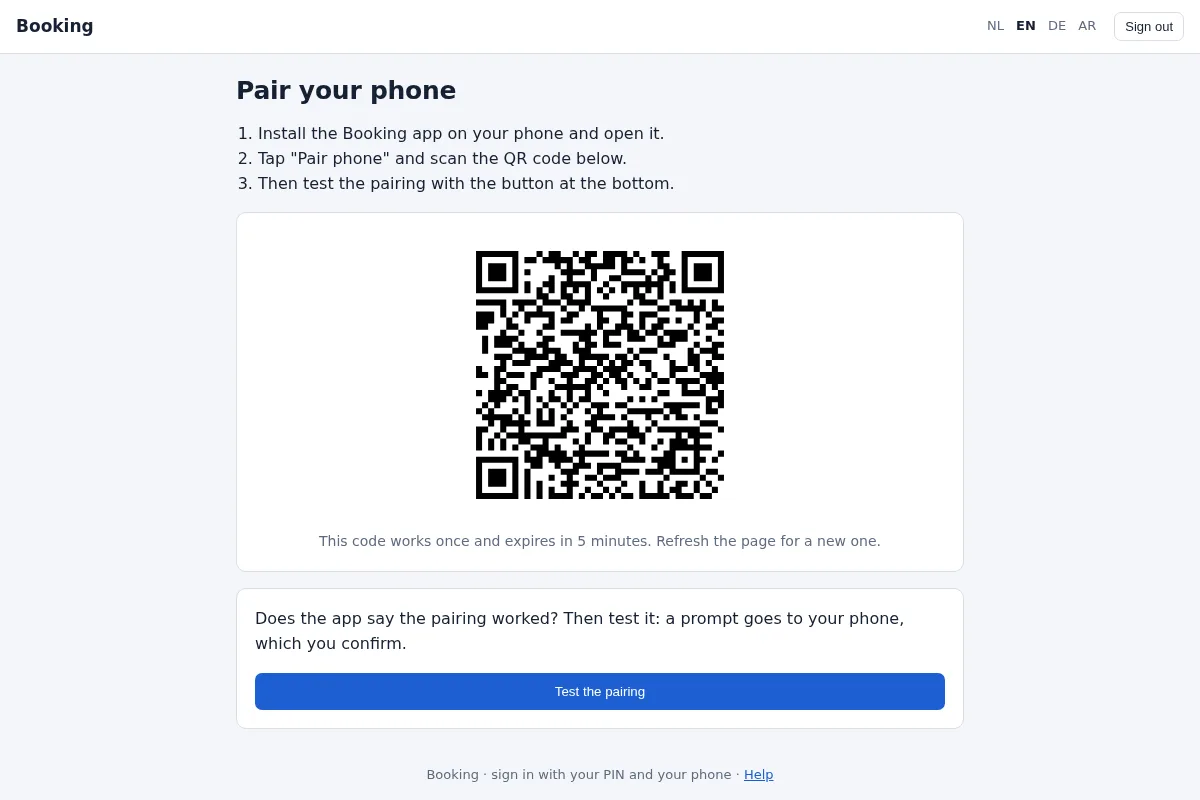
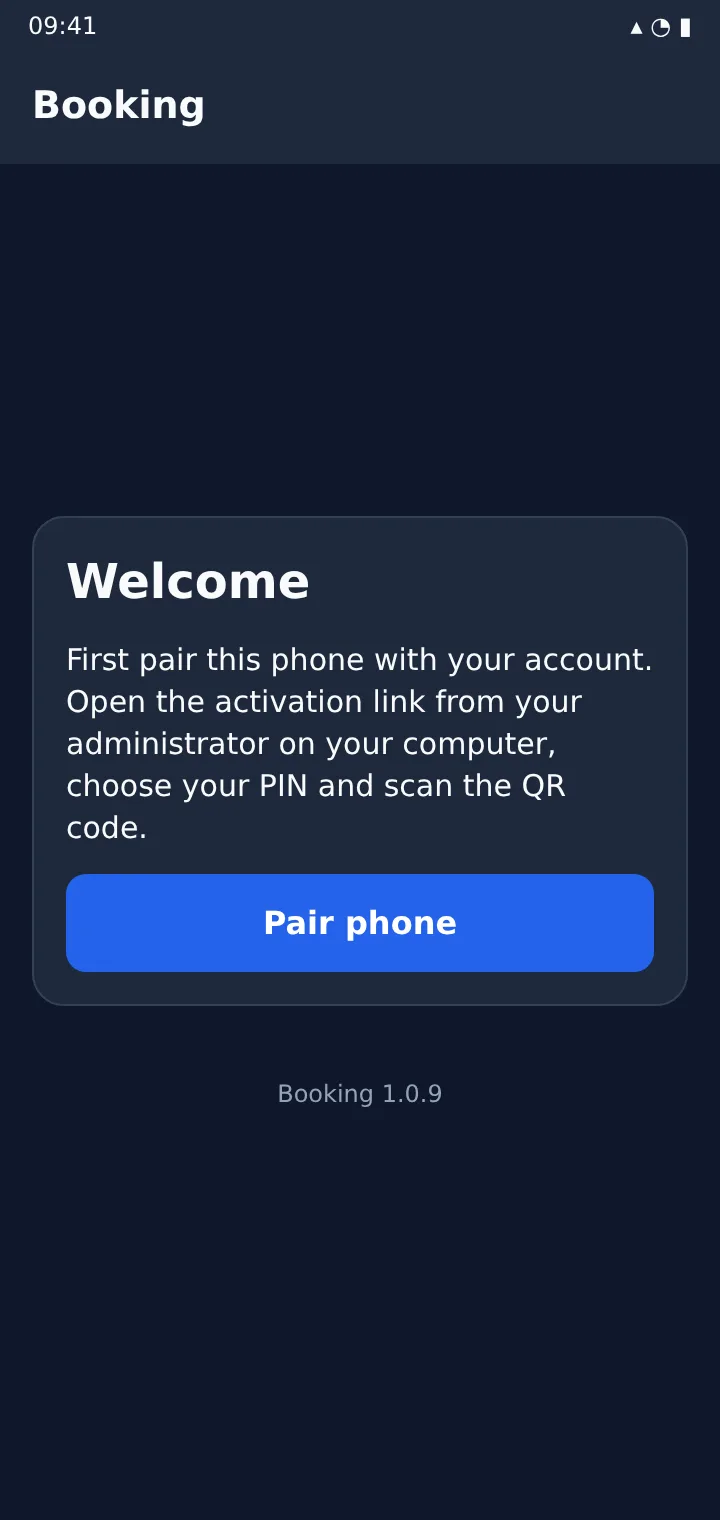
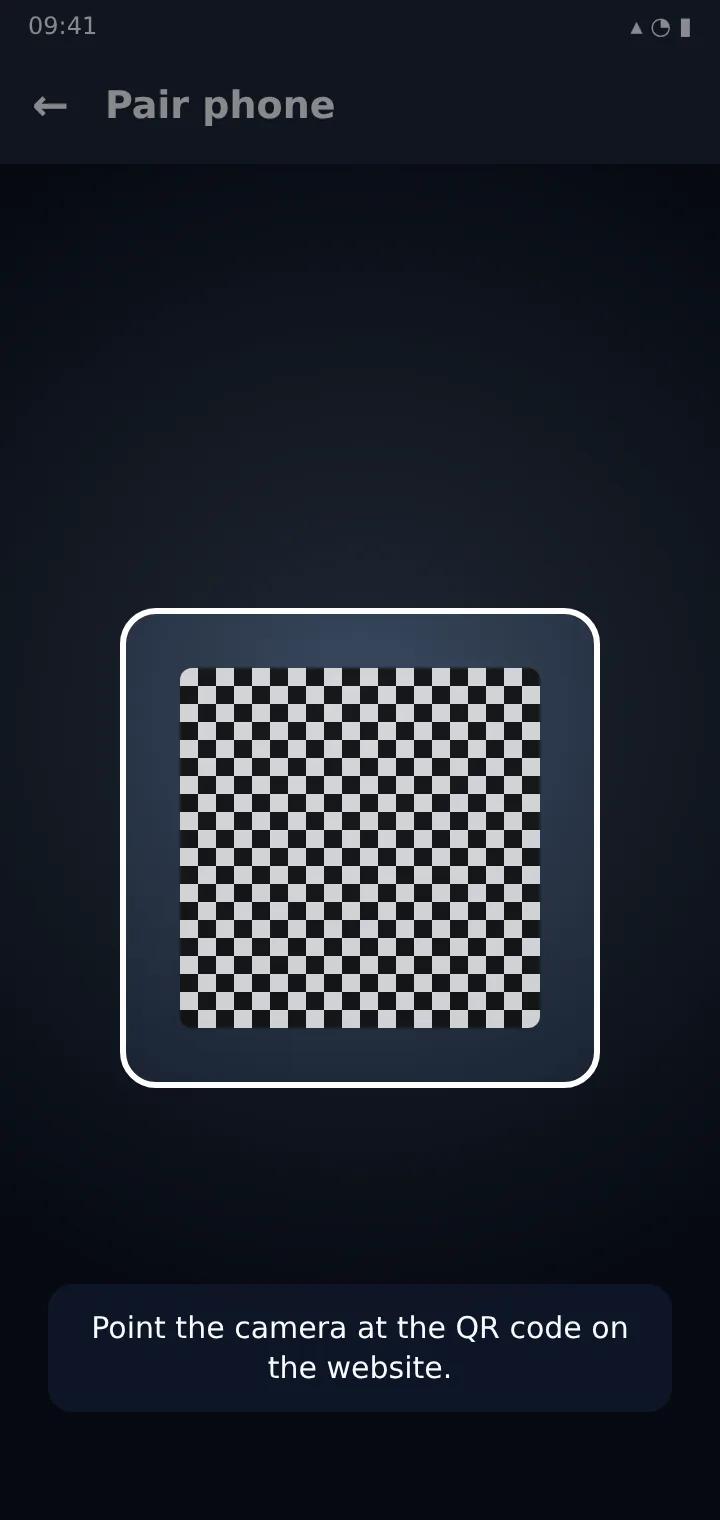
- Pair your phone. The portal now shows a pairing QR code. In the app tap Pair phone and point the camera at the code.
- Test it. Under the QR code, tap the test button: a request arrives on your phone. Approve it - you are ready.
Signing in
- On the portal, type your username and your PIN.
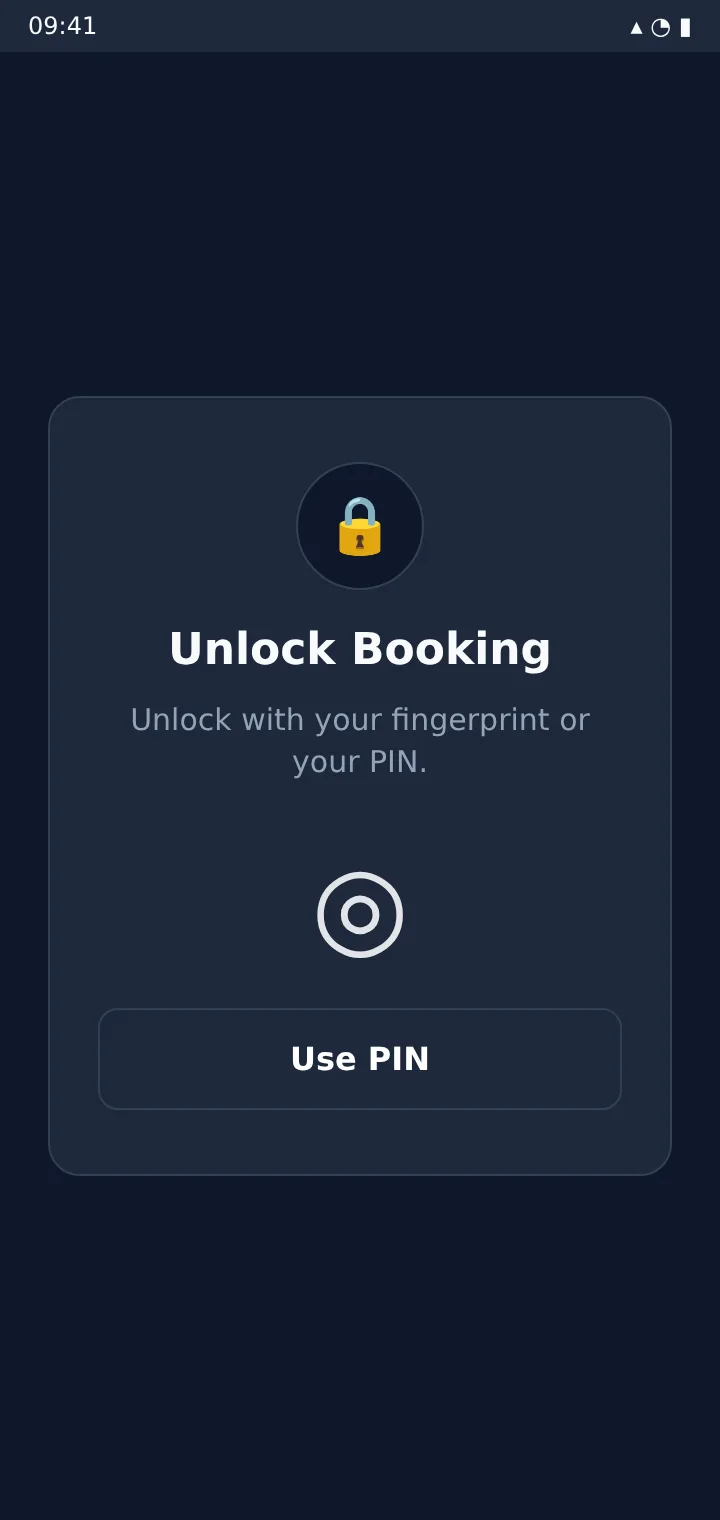
- Your phone shows a sign-in request with the website, the IP address and the browser. Tap Approve - within 90 seconds.
- The portal opens. Done.
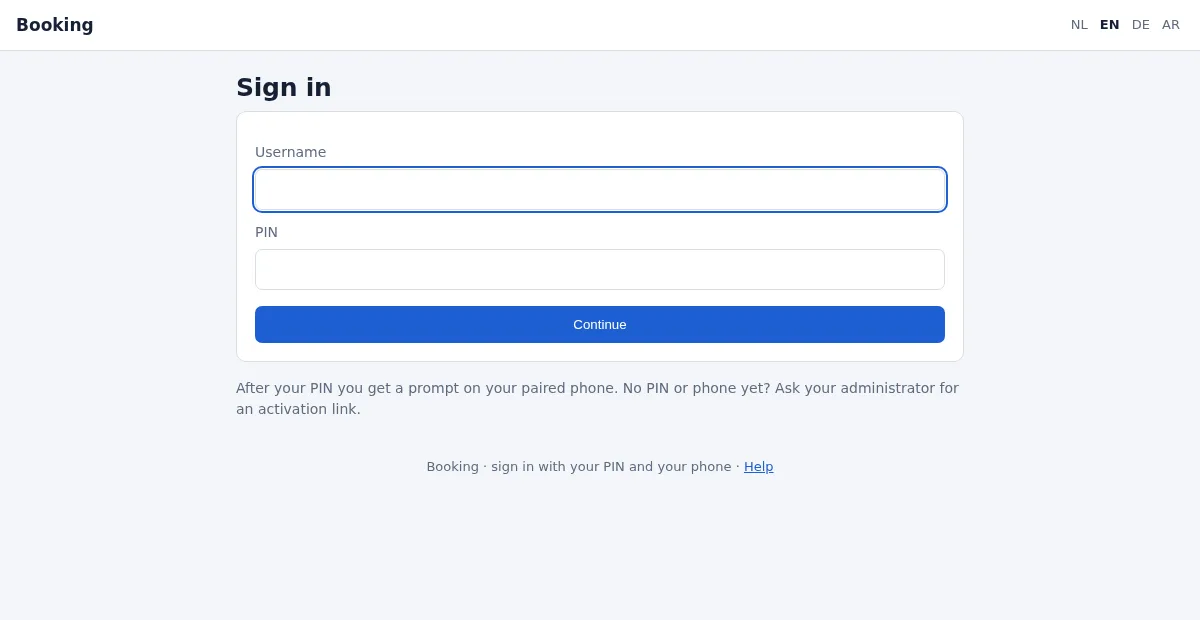
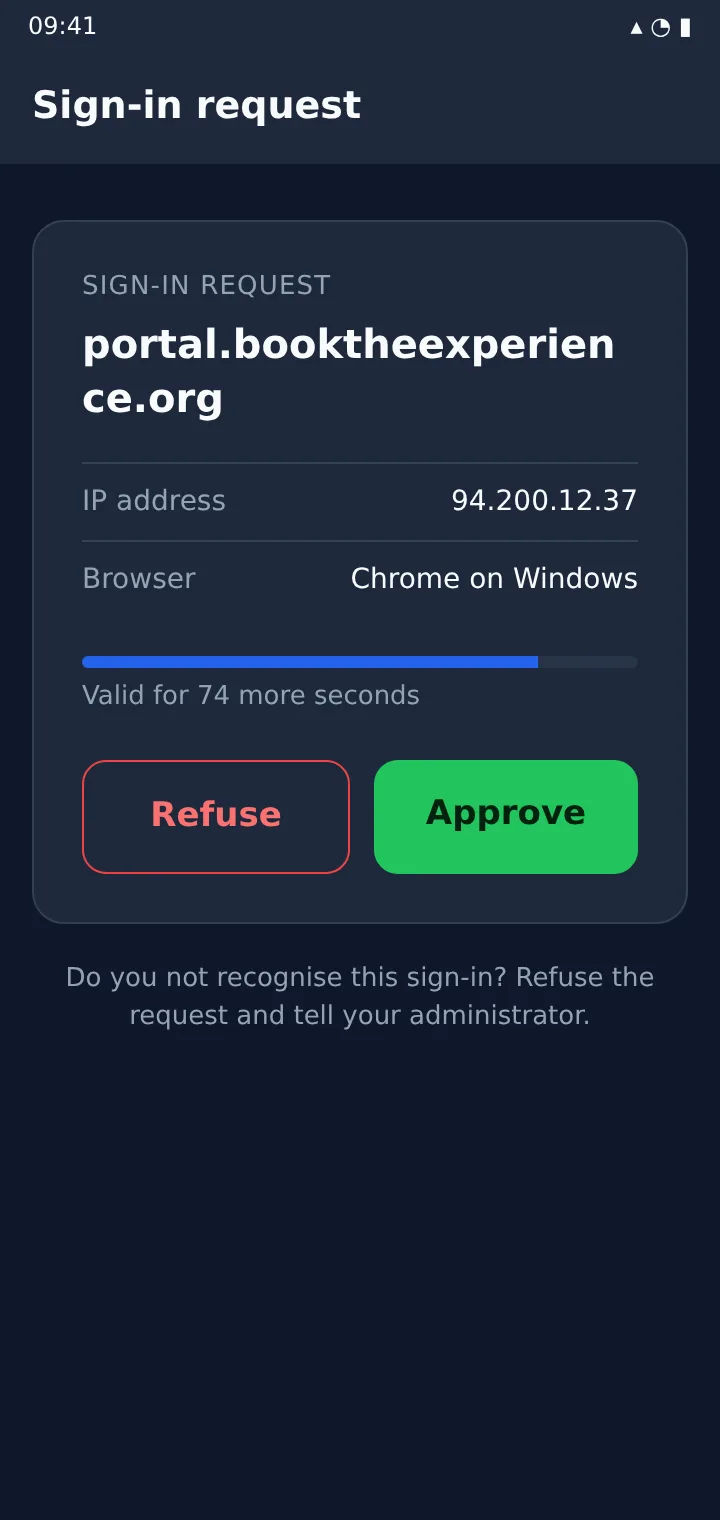
- Was it not you? Tap Refuse, change your PIN (your name at the top -> PIN) and tell your administrator.
- Wrong PIN five times? You are blocked for 1 hour; every further wrong PIN blocks longer (3, 6, 12, 24 hours). An administrator can lift the block.
- Language: NL, EN, DE or AR at the top of every page. Your choice is kept for the portal, the app and your e-mails.
The overview
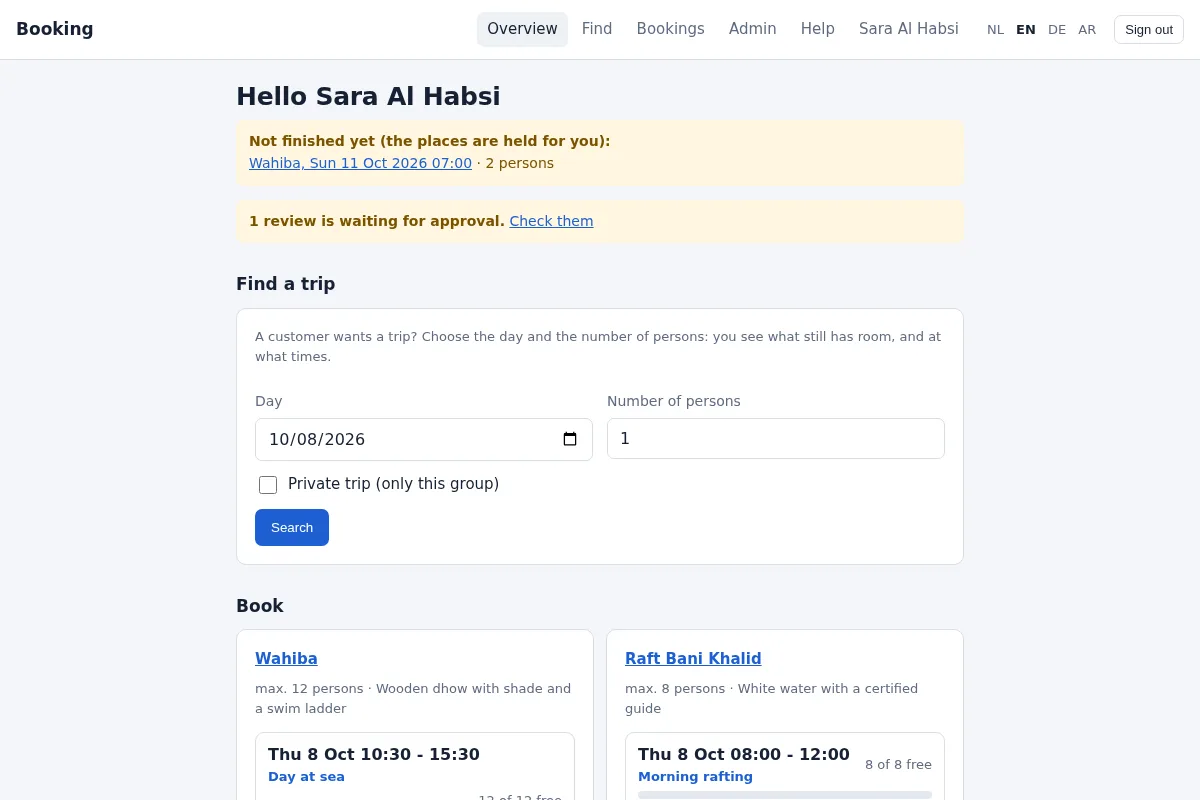
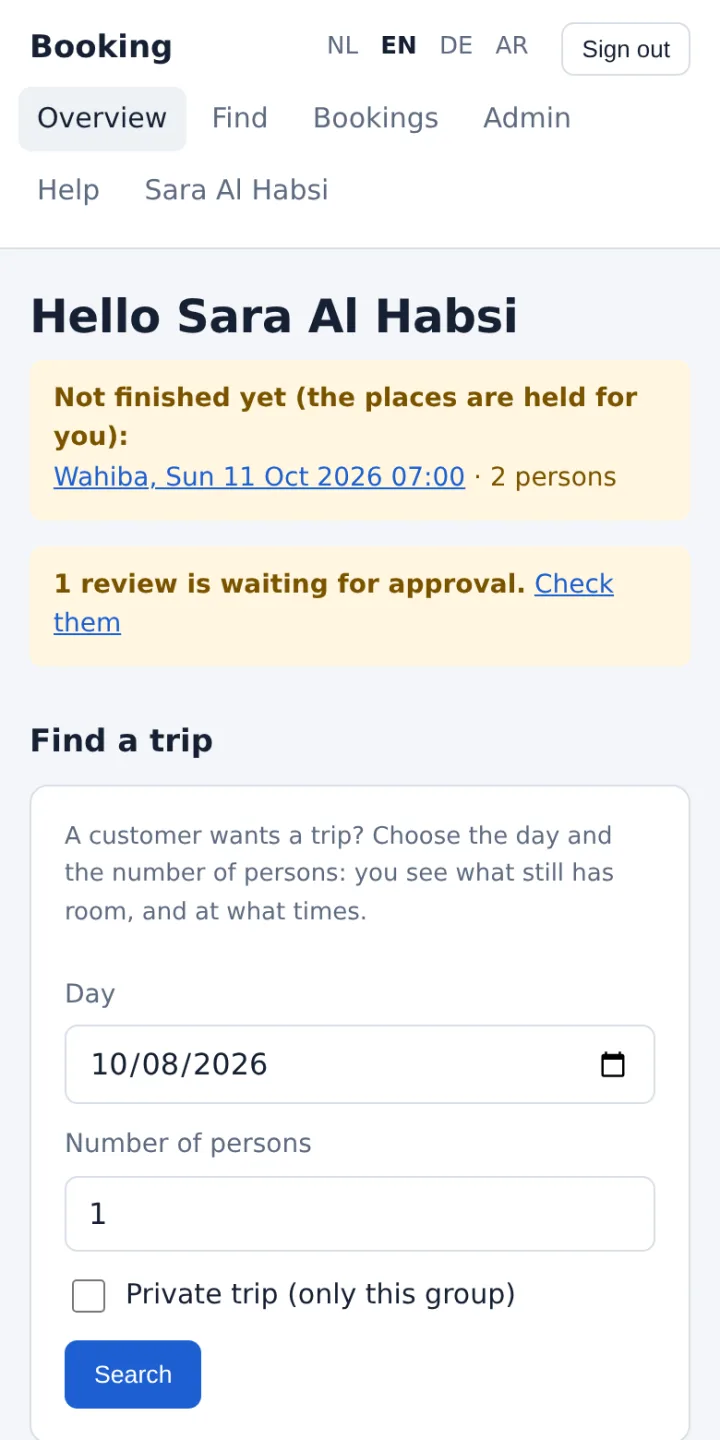
After signing in you see your overview:
- Not finished yet - places you reserved but did not complete (yellow).
- Notices - for example reviews waiting for you, or bookings in a period when something is out of order.
- Find a trip - which bookables still have room for a group (see below).
- Book - everything you may book, with its next times and free places.
- Upcoming bookings, and my bookings tomorrow as a PDF.
Booking a trip
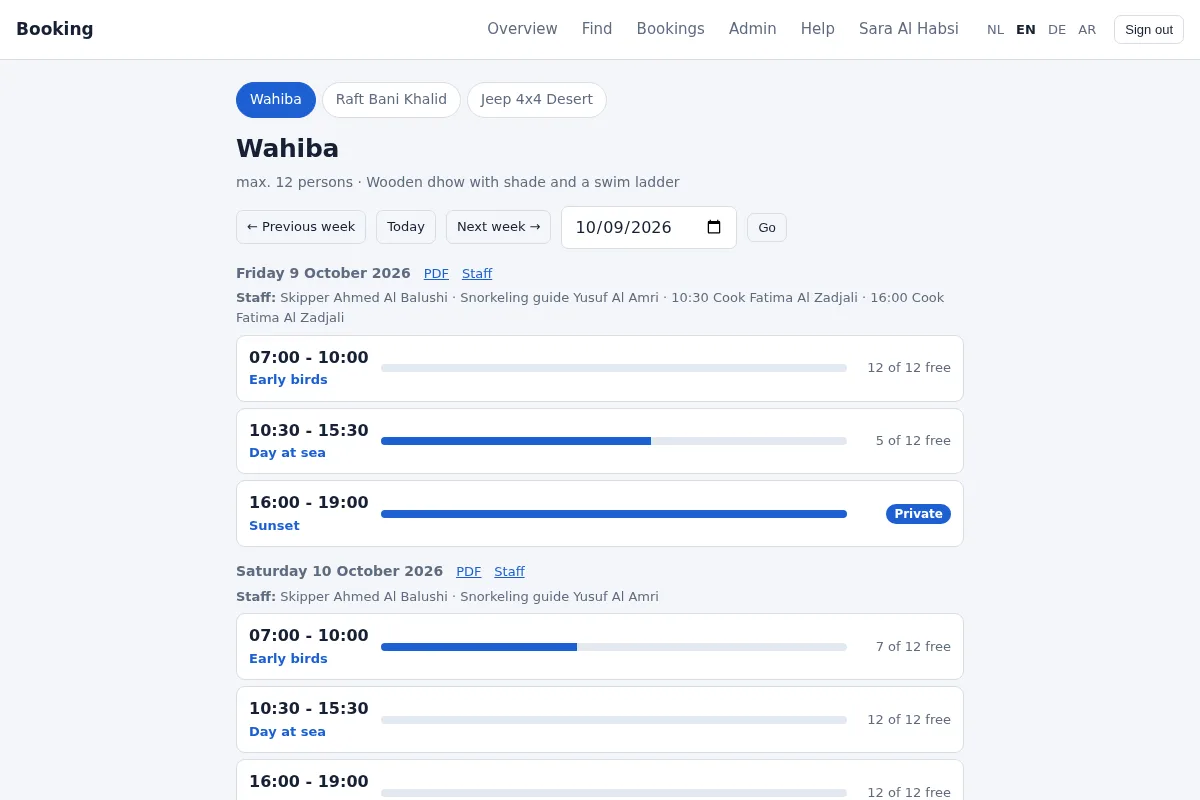
- Choose what to book - a boat, a raft, a jeep... You see a week of times with their free places. Change the week or pick a date.
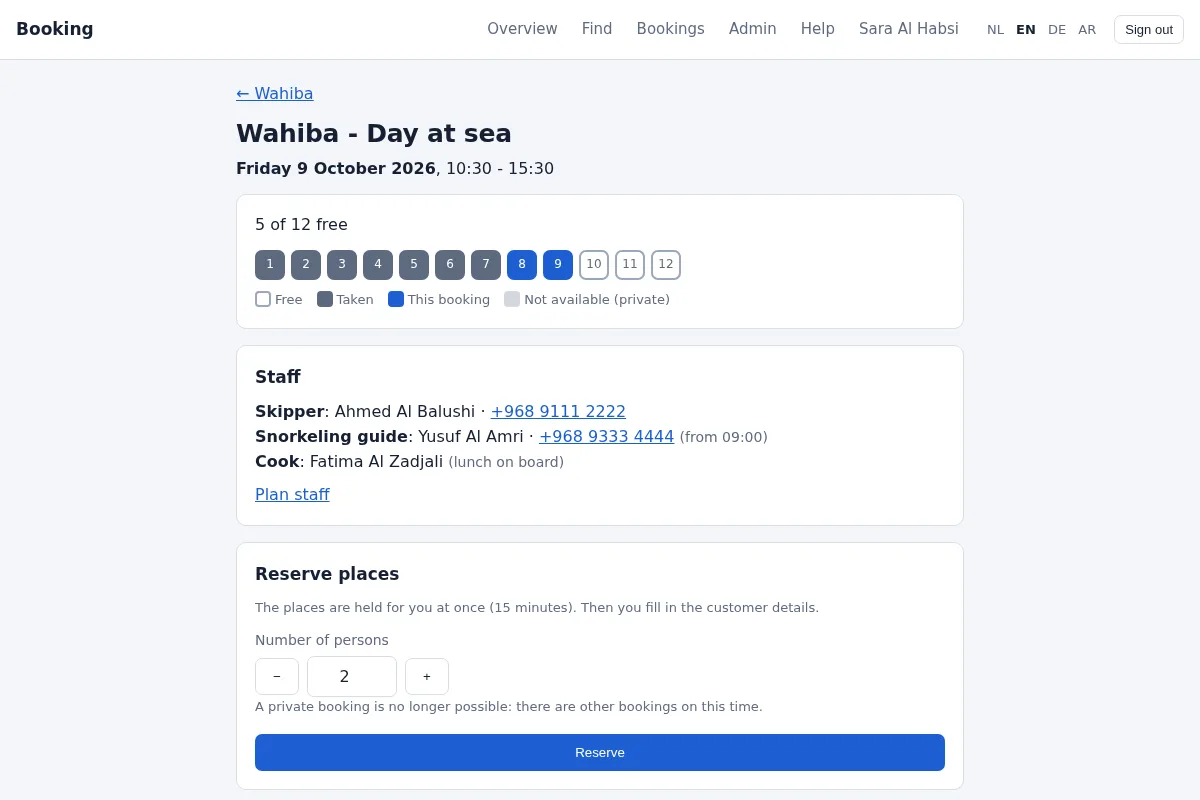
- Choose a time. The squares are the places: free, taken, and the places of this booking. Set the number of persons. Tick Private booking to give the whole time to one group (only while nobody else has booked it).
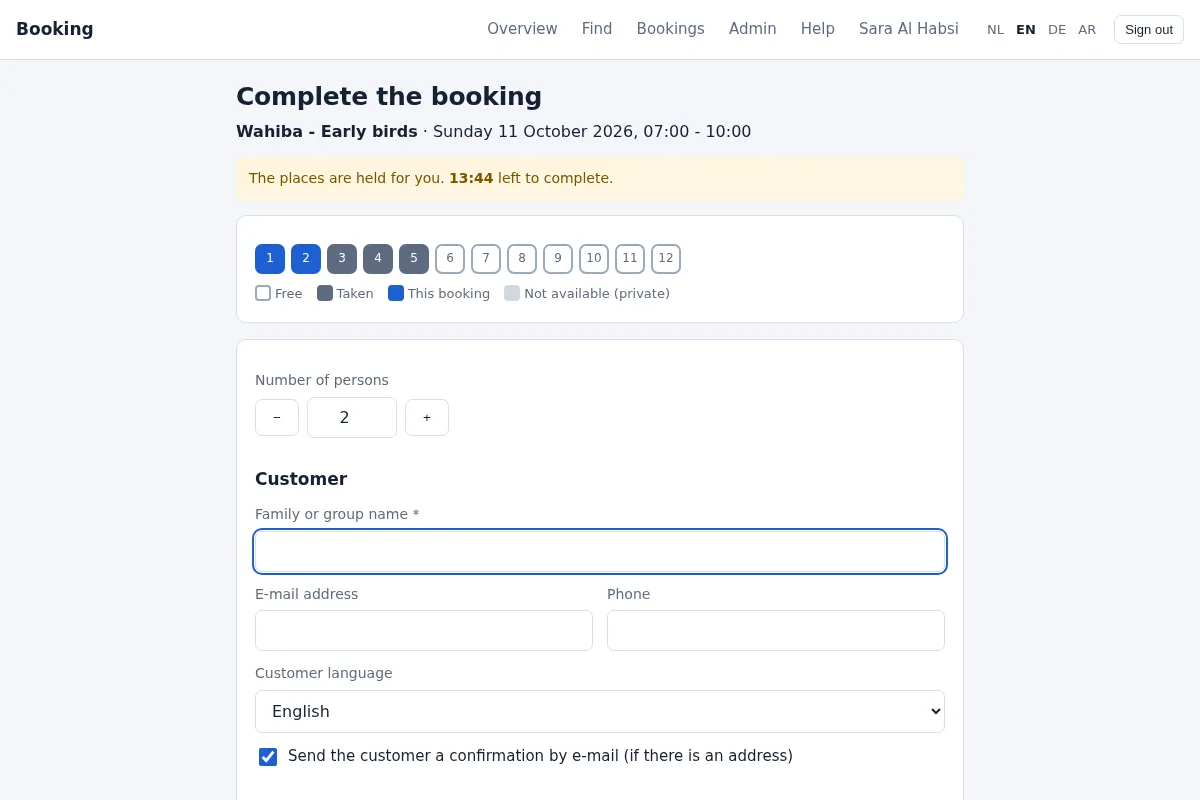
- Reserve. The places are held for you for 15 minutes while you fill in the details.
- Complete. The family or group name (required), e-mail, phone, the customer's language, and whether the customer gets a confirmation e-mail. If needed add a transfer: from a place to a place at a pick-up time, and a transfer back. Pick a place from your team's list or type a new one - it is added to the list.
- Book. You get a reference such as 8NTMJ8RV. If you do not complete in time, the places become free again by themselves.
Find a trip for a group
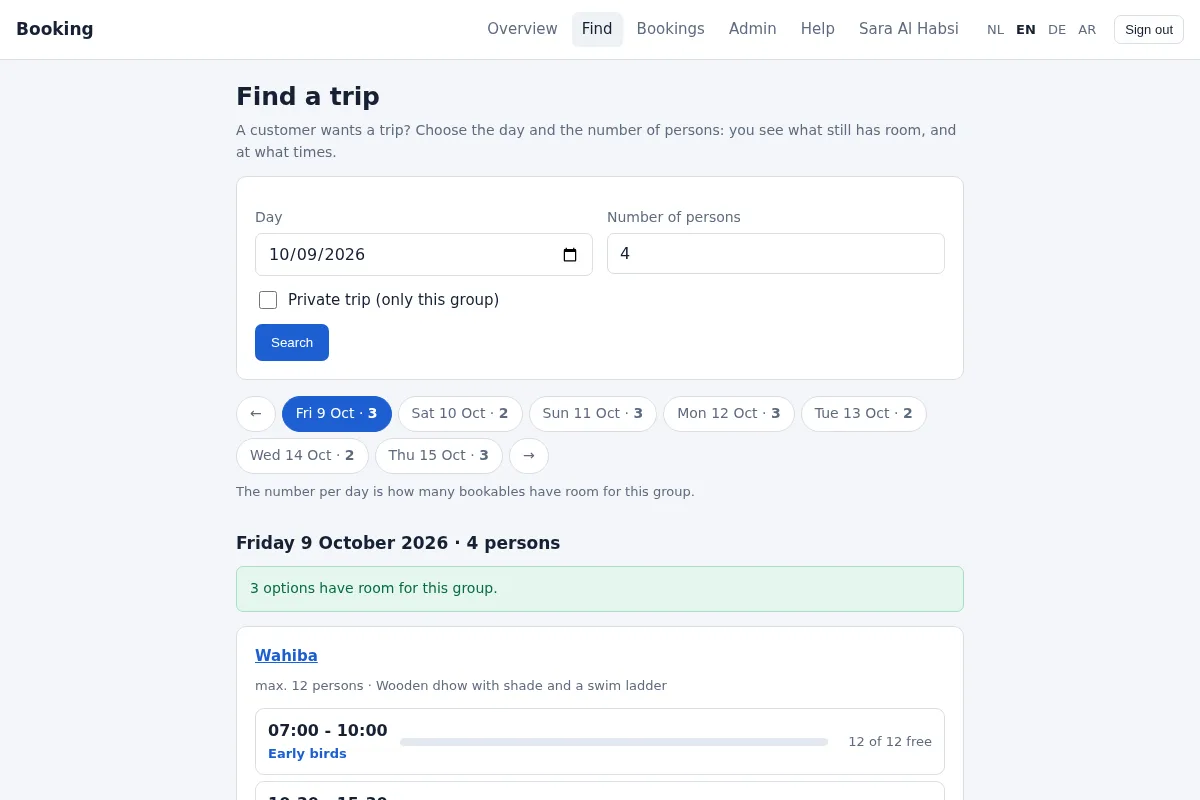
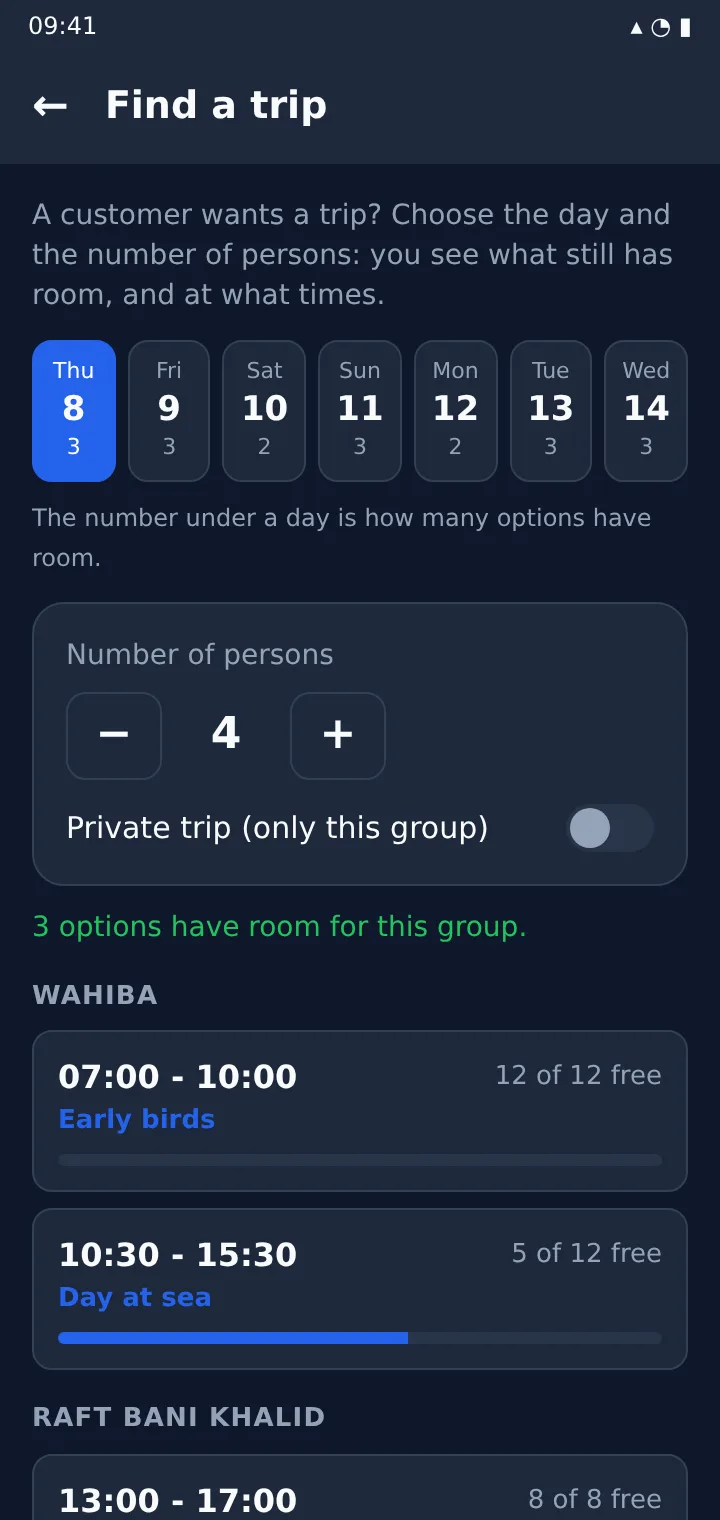
A customer asks: "Do you have room for 4 people tomorrow?" Open Find, choose the day and the number of persons (and private if they want the trip to themselves). You see what still has room and at what times, and for each day of the week how many options there are. Click a time to book it with the group size already filled in.
Your bookings
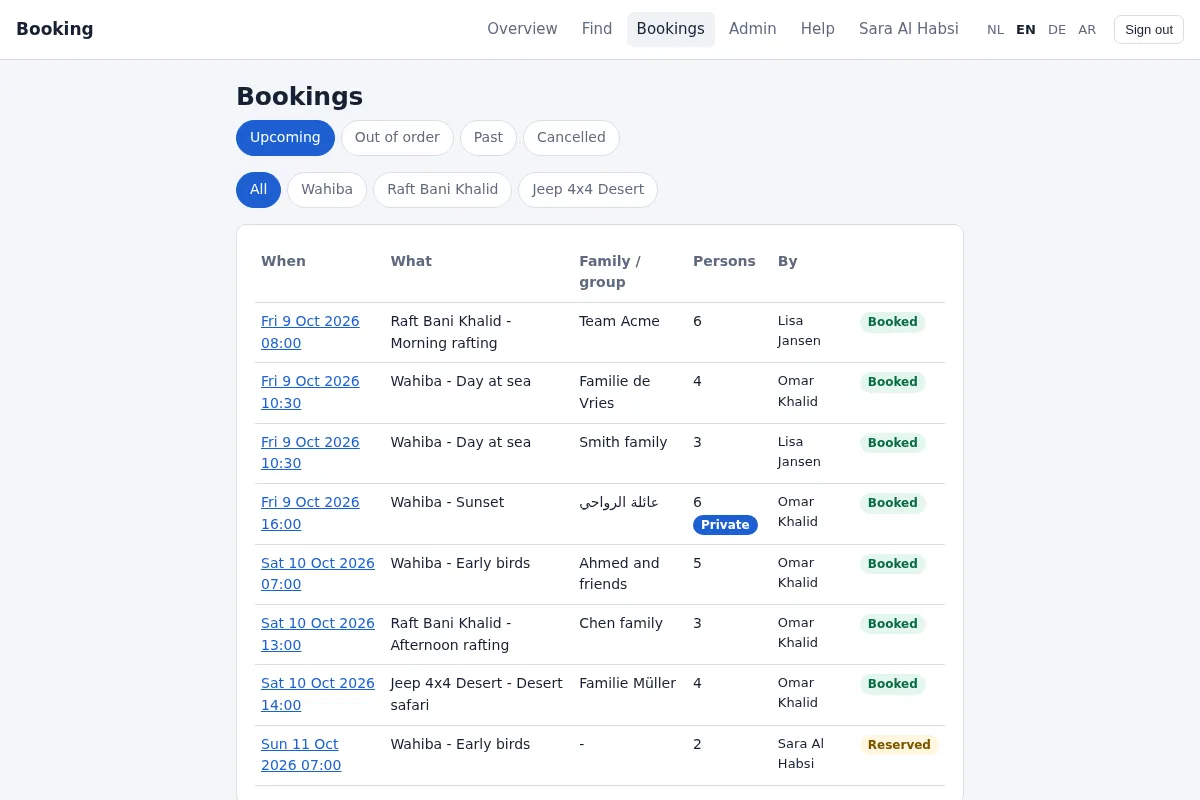
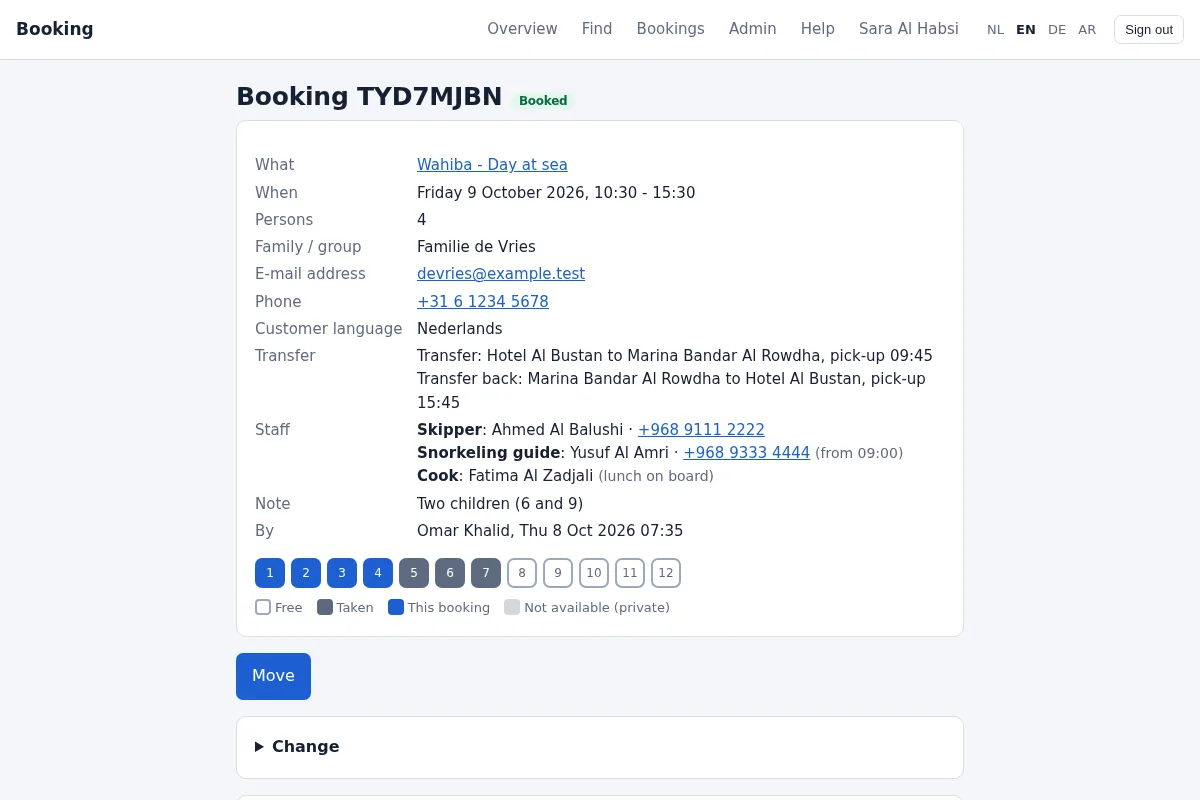
Bookings lists upcoming, past and cancelled bookings, also per bookable. Open a booking to see all details, the transfer and the history. You can:
- Change persons, private, customer details and the note;
- Move it to another time (the transfer moves along);
- Cancel it - the places become free at once.
Each time you can choose to e-mail the customer. Everyone in a team may see, change, move and cancel all bookings on the team's bookables.
Transfers and day reports
Every day at 17:00 the day report of tomorrow is e-mailed as a PDF:
- per bookable, to the report addresses your administrator set (each in its own language);
- to everyone who made bookings for tomorrow - their own bookings, in their language.
A report has the bookings, persons, contacts and notes, and all transfer pick-ups in time order - first in English, then in the reader's language. You can download the same PDF at any time: PDF next to a day on a bookable's page, or my bookings tomorrow on the overview.
Staff planning
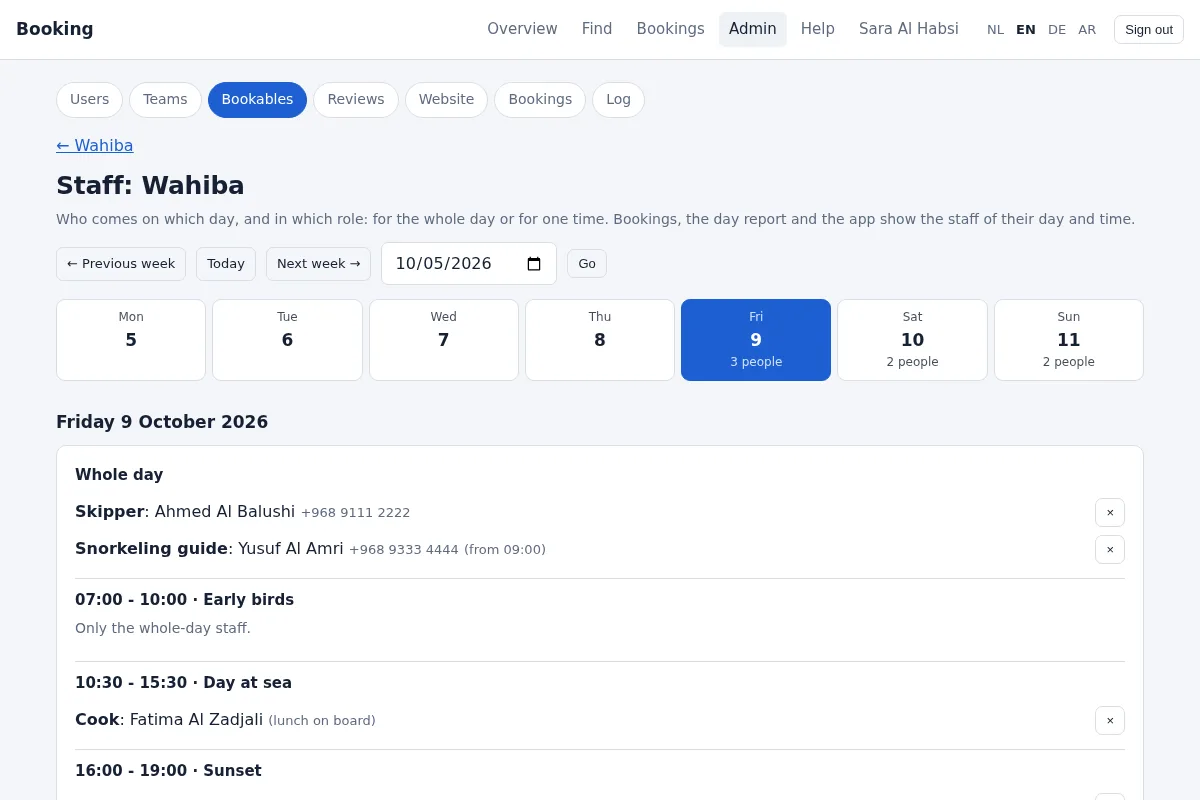
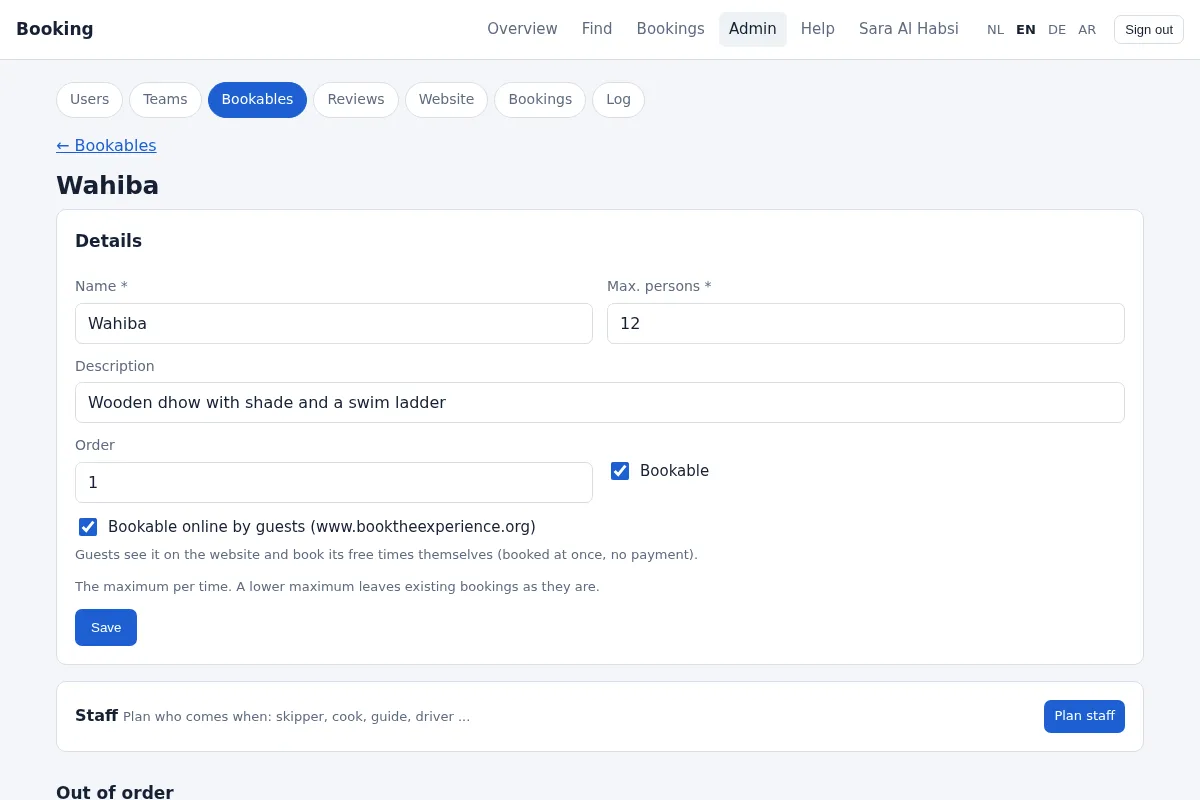
The owners of a bookable (and superusers) can plan who comes when: a skipper, a cook, a snorkeling guide, a driver - or a role you add yourself. Open it with Plan staff on the bookable's page under Admin -> Bookables, or with Staff next to a day in the week view.
- Staff list: the people you plan for this bookable, with their phone number and usual role. They do not need a login.
- Plan a day: choose the person (or type someone new), the role, and when - the whole day or one time only. Add a note if needed, such as "from 09:00".
- Copy: repeat the whole-day staff of a day for the next days in one go.
- Roles are one list for all bookables: a role you add can be used everywhere.
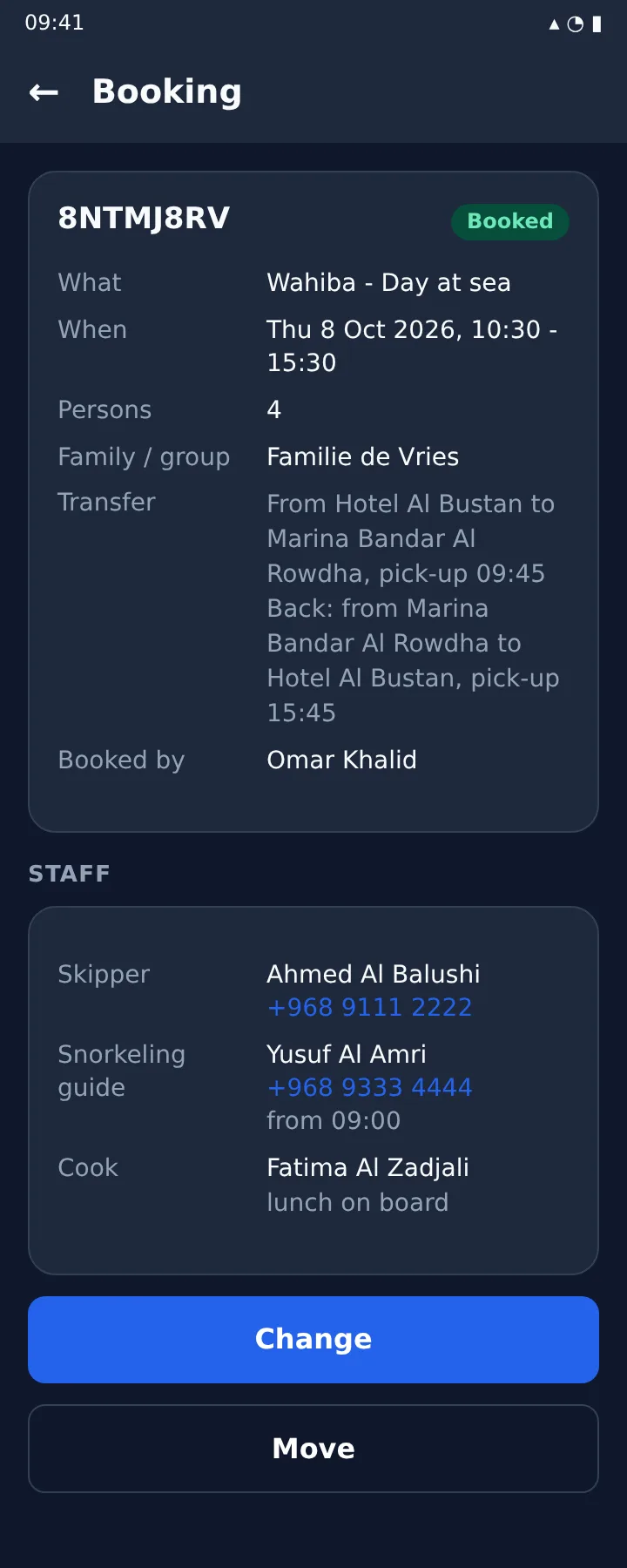
The planned staff appear on the booking and on the time in the portal, under each day in the week view, in the 17:00 day report, and on the booking screen of the app (from version 1.0.9).
Newsletter
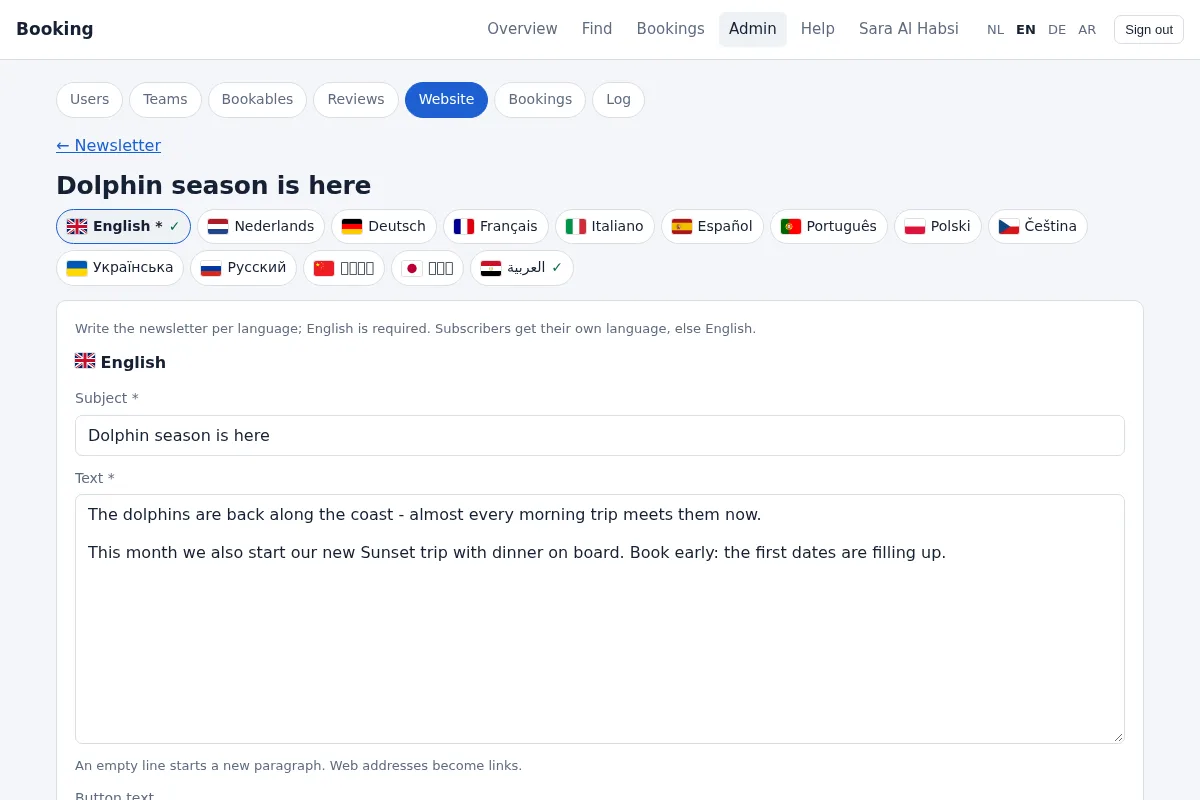
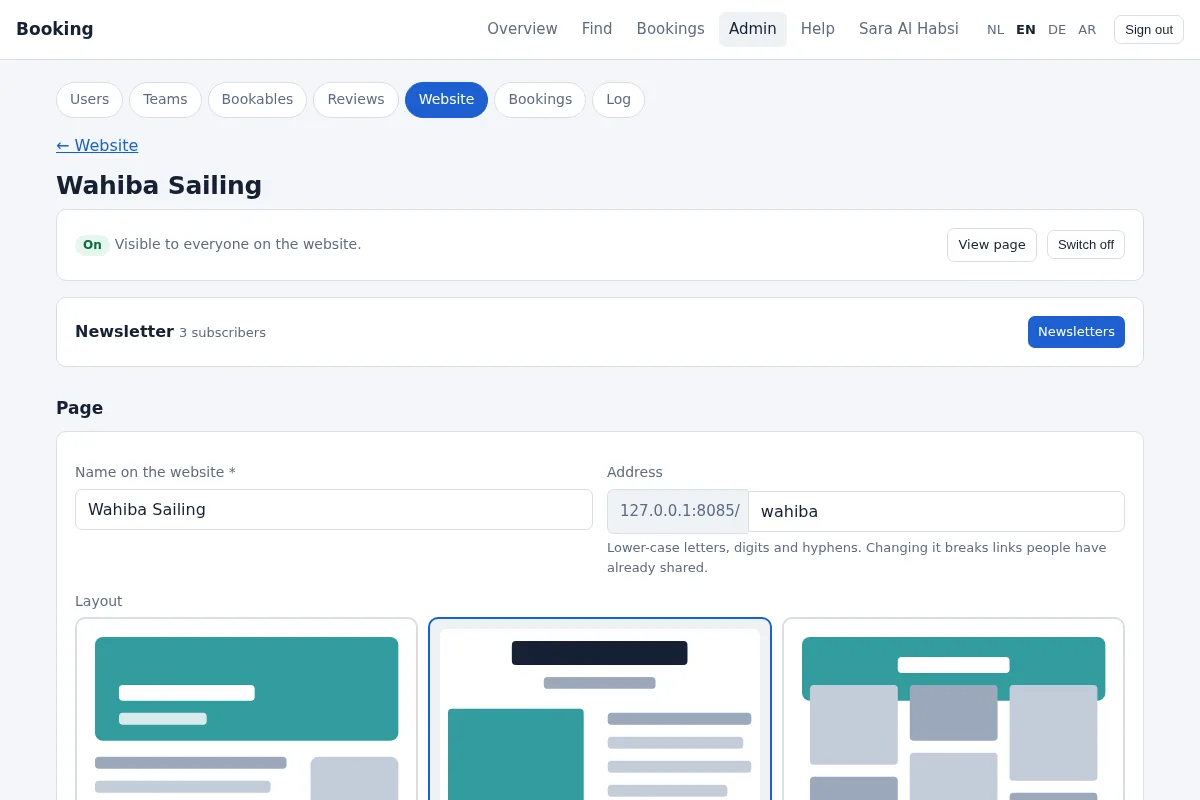
Each team can send its own newsletter. Guests sign up at the bottom of the team's page on www.booktheexperience.org and confirm with a link in an e-mail - nobody gets a newsletter without confirming. Web editors, team admins and superusers find it under Admin -> Website -> the team -> Newsletters.
- Write: a subject, the text, a button (for example "Book now" - it goes to the team's page unless you give another link) and a photo from the team's page. Per language; English is required. Every subscriber gets their own language, else English.
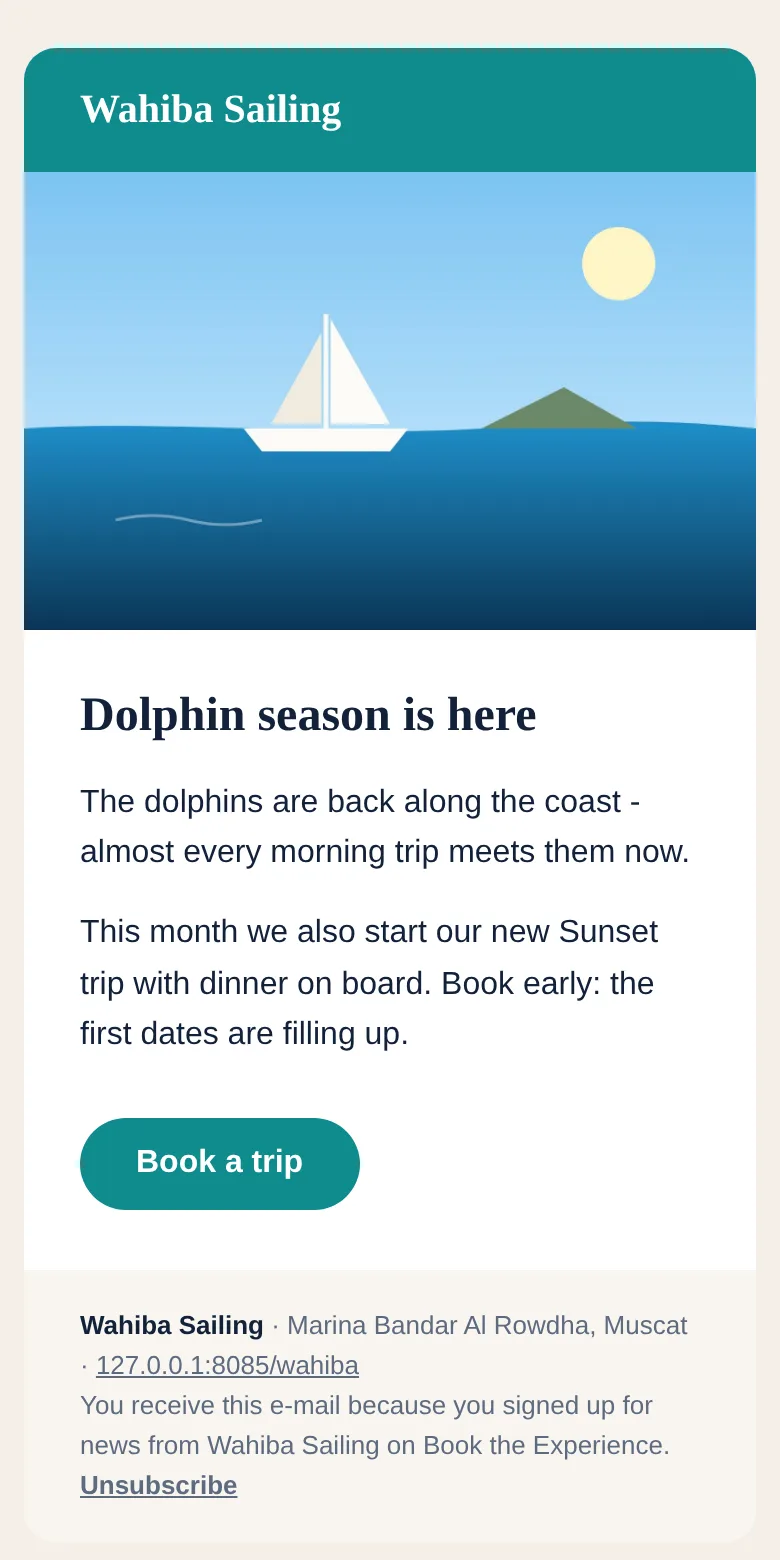
- Check: the preview shows the e-mail as subscribers will see it, and Send a test sends it to your own e-mail address first.
- Send: it goes to everyone who confirmed. The first mails leave at once, the rest within a quarter of an hour. A team can send one newsletter per day.
- Unsubscribe: every newsletter has an unsubscribe link (many mail programs also show it as a button). You can take someone off the list yourself as well.
The Booking app
The app is your key to the portal, and a handy way to book on the go.
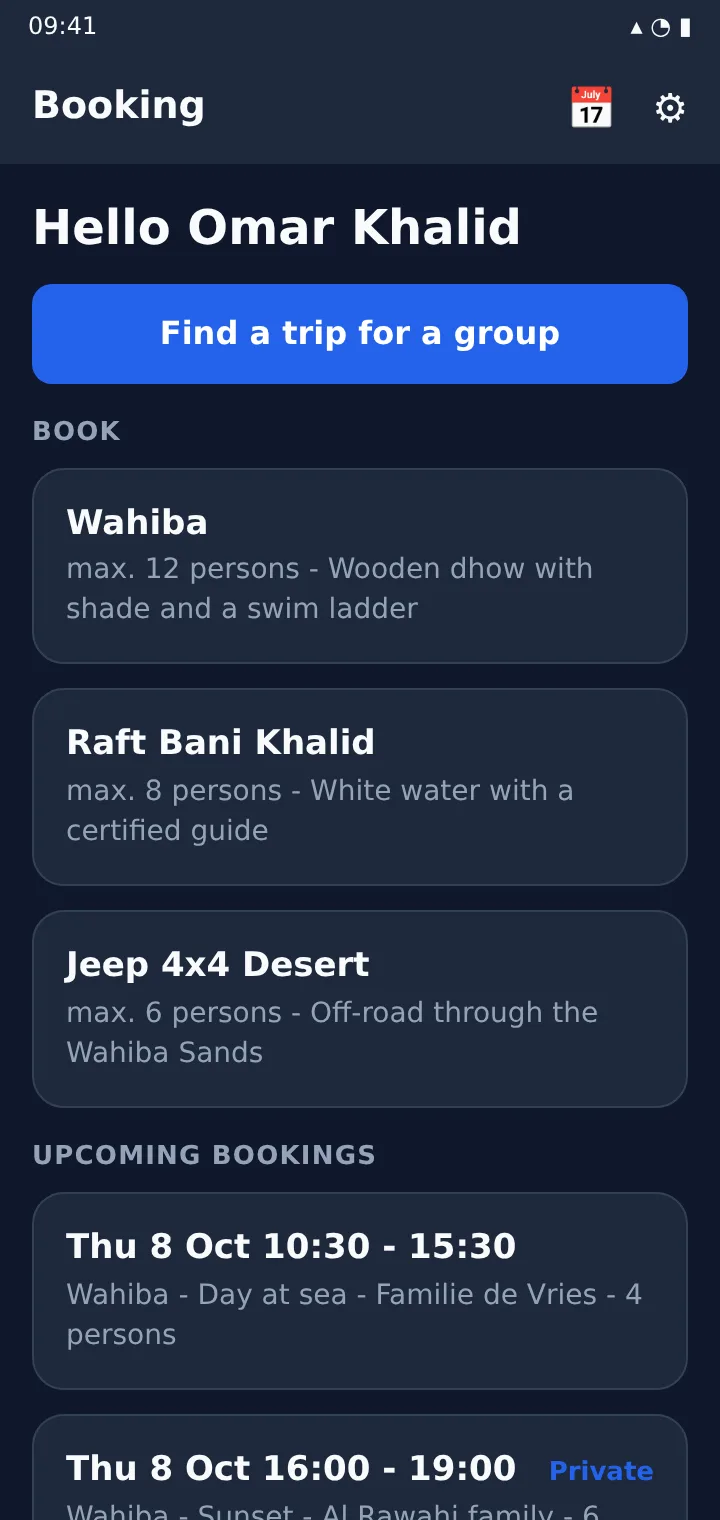
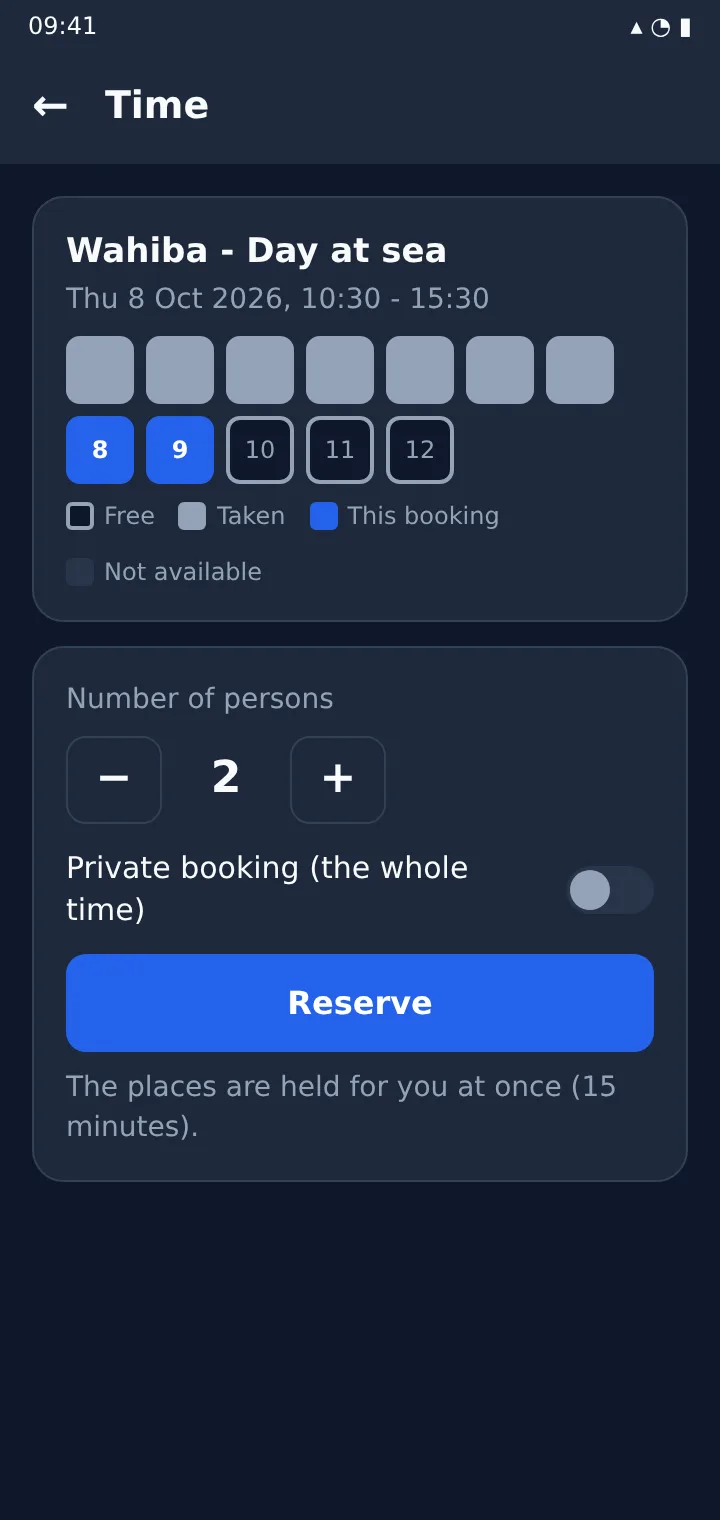
- Home: everything you may book, Find a trip for a group and your upcoming bookings. Top right: all bookings and the settings.
- Settings: language (English, Nederlands, Deutsch, العربية - Arabic reads right to left), notifications, fingerprint, and the pairing.
- Updates: a new version comes from the same download page and is installed over the old one; the pairing stays.
- Lost or new phone? Tell your administrator straight away. They remove the pairing - the old phone stops working at once - and give you a new activation link.
Roles
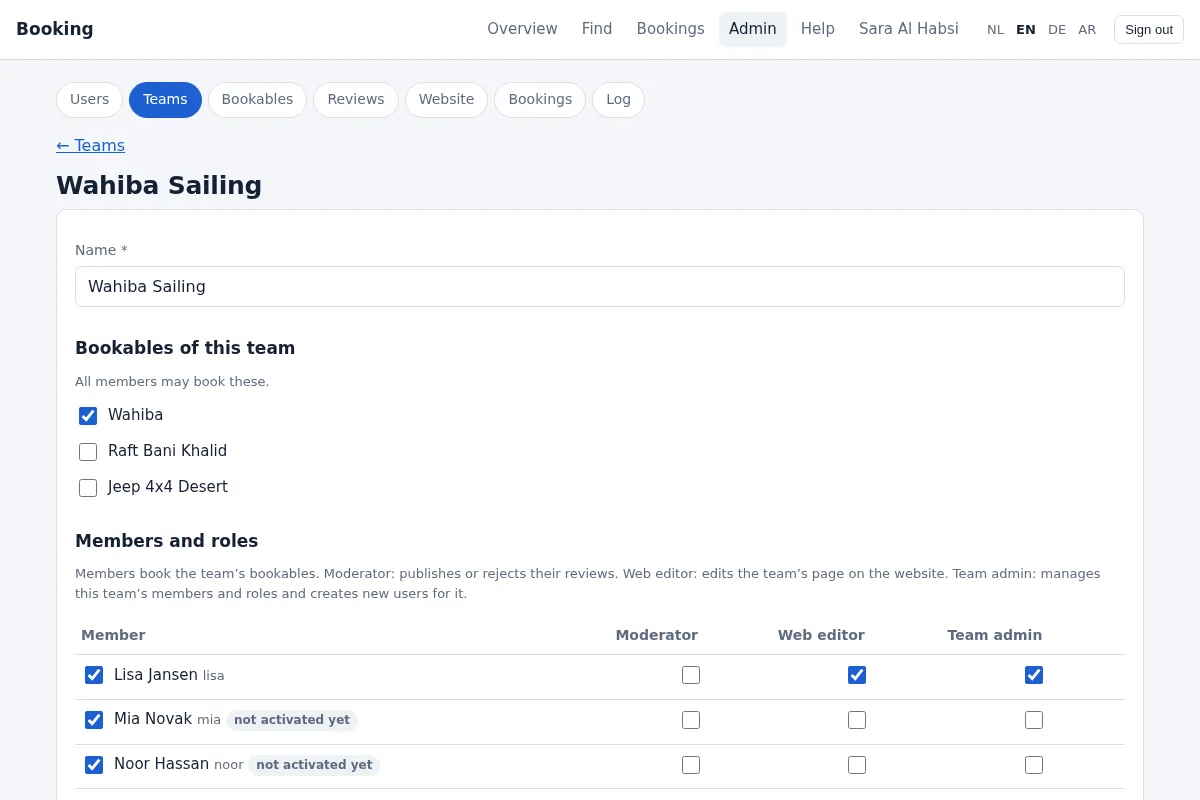
Roles are given per team (on the team's page under Admin -> Teams); one person can have several.
| Member of a team | Books the team's bookables and may see, change, move and cancel all bookings on them. |
|---|---|
| Owner of a bookable | Manages its programs, times, places, out of order periods and staff planning, and sees its bookings (only sees them, unless also in a team). Out of order means: no new bookings in that period; existing ones are flagged so you can move them. |
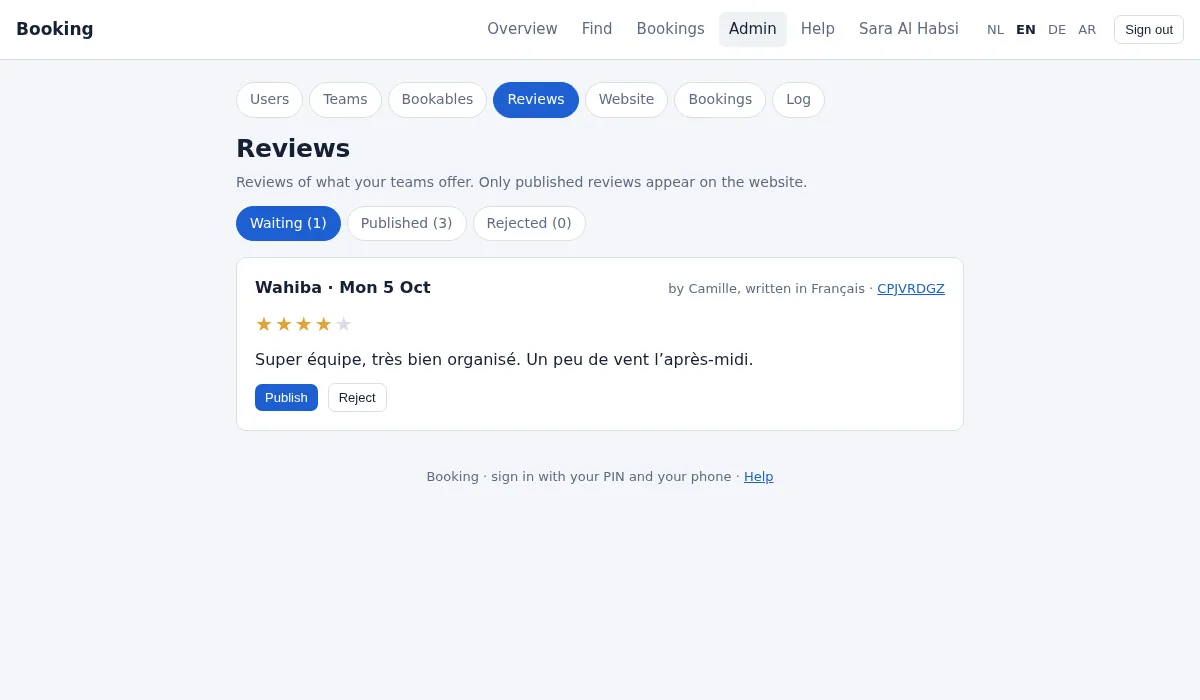
| Moderator | Publishes or rejects the guests' reviews of the team's bookables; gets an e-mail when a review arrives. |
| Web editor | Edits the team's own page on www.booktheexperience.org: texts in 14 languages, photos, layout, colour, contact and tags. |
| Team admin | The partner: may do everything in the team - members and roles, new users (up to 5 extra; more through the administrator), activation links for members who never activated, the company details, the team's own bookables (new ones too), the website, reviews, Sell together and the team log. |
| Superuser | May do everything: users, all teams and bookables, the log - and can work as another user to help them. |
Admin tasks
What you see under Admin depends on your roles.
- Users (superuser): make users, send activation links, unlock a PIN, remove a phone's pairing, block a user.
- Teams: the team's bookables, its members and their roles, and the transfer places.
- Bookables: name, description, maximum persons, bookable online by guests, report e-mail addresses, the weekly schedule with programs, single times, and out of order periods.
- Reviews: waiting, published and rejected reviews.
- Website: the team's page - name, address, layout, colour, contact, texts per language (English is required), tags, photos, on/off and a preview link - and the team's newsletter.
For partners
A partner is a company that offers its own experiences here. Each partner has its own team, and the partner's own account is team admin of it: it may do everything in that team.
- Becoming a partner. The company signs up on www.booktheexperience.org/partner. A superuser presses Make partner under Admin -> Partners: that creates the team with the company details and the partner's account, and e-mails the activation link.
- Company details. Admin -> Teams -> your team -> Company details: company name, contact person, e-mail, phone, website, region and address. Only for the administrator; the website shows the contact details of your team page.
- Users. Add up to 5 extra users for your team under New user, and give them their roles. Need more? Contact the administrator.
- Bookables. Admin -> Bookables -> New bookable. It belongs to your team and you manage it: times and programs, out of order, staff, report addresses and bookable online by guests.
- Website and reviews. Your team page under Admin -> Website, the reviews under Admin -> Reviews.
- Team log. On your team's page, Team log: the changes in your team, your users' sign-ins and the bookings - without IP addresses.
Sell together
A partner can also sell another partner's bookable to its own customers. Under Admin -> Sell together, search for it and press Ask to sell. The owner gets an e-mail and accepts or refuses under Sell together. Once accepted:
- your team books its free places for your customers, in the portal and in the app;
- you see only the bookings your own team made - the owner's customers are taken places, without names;
- the owner sees all bookings, yours too, also in the day report;
- either side can stop it at any time; the bookings made until then stay.
Guests and the website
- Guests sign up on www.booktheexperience.org, confirm their e-mail address and book what is marked bookable online by guests - up to 12 hours before the start. They can cancel online up to 24 hours before.
- Their bookings appear in the portal like yours (booked by online) and are in the day reports.
- After the trip every customer with an e-mail address gets a review link. Reviews appear on the website after a moderator has published them.
- Each team can have its own page, and guests find teams with the search at the top of the website (by name, tag or text).
Safety
- Never share your PIN. Nobody from the organisation will ever ask for it.
- Only approve a sign-in request that you started yourself, just now.
- Sign out on a computer that others use too.
- Lost your phone? Tell your administrator at once.